To paste screenshots into a remote terminal, upload the image from your laptop to the SSH host, then paste the remote file path. A terminal can paste text such as /tmp/bug.png; the remote process cannot read an image that exists only in your local clipboard.
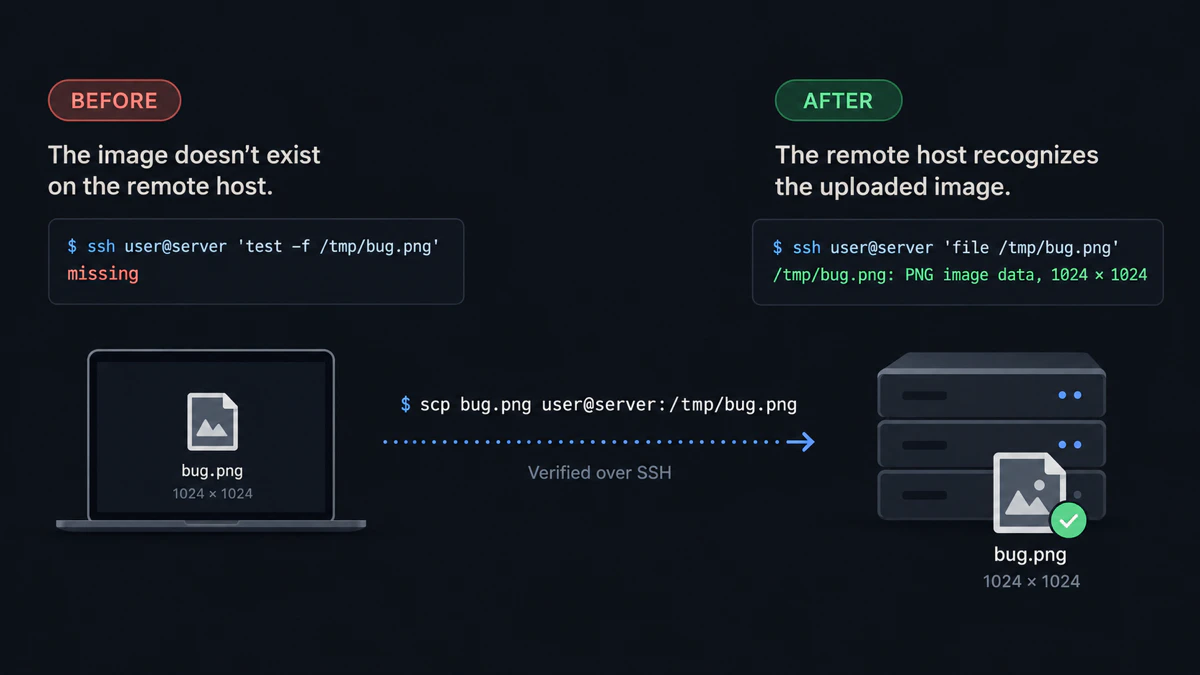
A local screenshot becomes usable in the remote terminal after an SSH upload creates a file on that host.
Why screenshot paste fails in a remote terminal
Your terminal sends pasted text through the SSH session. A screenshot in the macOS, Linux or Windows clipboard contains image bytes, and plain SSH does not turn those bytes into a file on the server.
Some terminal integrations and clipboard helpers add an upload step. They copy the image over SSH or SFTP, then place a server-side path on the clipboard. Claude Code, Codex and ordinary shell commands can read that path because it points to the filesystem where they run.
Save the screenshot on your laptop
Save one screenshot as a PNG before testing the transfer. On macOS, Cmd+Shift+4 saves a selected area to the Desktop. Windows Snipping Tool and Linux screenshot apps can also save a PNG.
Use a short filename so the source and destination stay clear in the next command:
~/Desktop/bug.pngExpected result: the image opens on your laptop and has a non-zero file size.
Upload the screenshot over SSH
Run scp from the laptop, outside the active remote shell:
scp ~/Desktop/bug.png user@server:/tmp/bug.pngThe first path is local. The last path is on the SSH server. If your host lives in ~/.ssh/config, use its alias:
scp ~/Desktop/bug.png work-vm:/tmp/bug.pngConfirm the upload before giving the path to a program:
ssh user@server 'file /tmp/bug.png && ls -lh /tmp/bug.png'Expected result: file reports PNG image data and ls shows a non-zero size.
Paste the remote path into the terminal
Your clipboard can now hold a text instruction with the server path:
Inspect /tmp/bug.png and explain the layout problem.Paste that line into Claude Code or another remote coding agent. For a shell command, use the path as an argument:
file /tmp/bug.pngThe path must match the destination from scp. A laptop path such as /Users/you/Desktop/bug.png does not name the uploaded file on the server.
Paste screenshots into a remote terminal with vmup
Repeated scp commands get awkward when several screenshots belong to one task. After installing vmup and completing the first upload, start clipboard mode in a local terminal:
vmup --clipOn macOS, install pngpaste first so vmup can read bitmap data from the clipboard:
brew install pngpasteTake a screenshot to the clipboard, return to the local terminal running vmup, and press Enter. Repeat for the other screenshots, then type done. Linux uses wl-paste or xclip. Native Windows clipboard capture is unsupported; save the screenshots and pass their WSL paths instead.
vmup uploads the captures into one temporary directory and copies a prompt like this:
Please inspect all files in ~/vmup/agents-20260927-120000-a1b2c3d4/Paste the prompt into the agent running on the remote machine. One folder gives it the complete screenshot set. The default TTL removes the batch after five minutes unless you configure a longer window.
Choose a screenshot upload workflow
| Situation | Use | Result |
|---|---|---|
| One saved screenshot | scp | One remote image path |
| Several clipboard screenshots for one task | vmup --clip | One remote folder and one copied prompt |
| Screenshots land in a folder | vmup watch | One batch when you press Enter |
| Each copied image should upload in the background | A clipboard uploader | A remote path replaces or accompanies the clipboard image |
For background apps, paste shims and terminal wrappers, compare the Claude Code SSH screenshot uploaders. The upload boundary stays the same: the screenshot must reach the remote filesystem before a remote process can open it.
Use the screenshot with Claude Code or Codex
Claude Code can read the uploaded path from a prompt. The Claude Code image paste guide covers clipboard errors, Remote-SSH drag and drop, and tmux.
Codex CLI accepts remote image paths through its image option:
codex --image /tmp/bug.png "Explain the visual bug"Read attach an image to Codex CLI over SSH for multiple-image forms and verification steps. If the task includes PDFs, logs or recordings, use the broader remote coding agent file guide.
Delete manual files under /tmp when you finish:
ssh user@server 'rm -f /tmp/bug.png'Quick answers
Can I paste a screenshot into a remote terminal over SSH? Upload the screenshot to the SSH host, then paste its remote file path. Plain terminal paste does not copy local image bytes to the server.
Why does Cmd+V or Ctrl+V fail with screenshots over SSH? The image lives in the laptop clipboard while the receiving process runs on the server. Text crosses the terminal session; the image needs a file-transfer step.
Where should I run the upload command?
Run scp or vmup on the laptop that holds the screenshot, outside the remote SSH shell.
What do I paste after the upload?
Paste the remote path or a prompt containing it, such as Inspect /tmp/bug.png.
Can I send several screenshots in one batch?
Yes. vmup --clip collects clipboard images, uploads them into one remote folder, and copies a prompt with that folder path.
Disclosure: vmup is maintained by the author of this article. The manual scp workflow remains the dependency-free baseline for one saved screenshot.