To attach a laptop image to Codex CLI over SSH, first copy the image onto the remote server. Then start Codex with codex --image /remote/path/image.png so the CLI receives a file it can read.
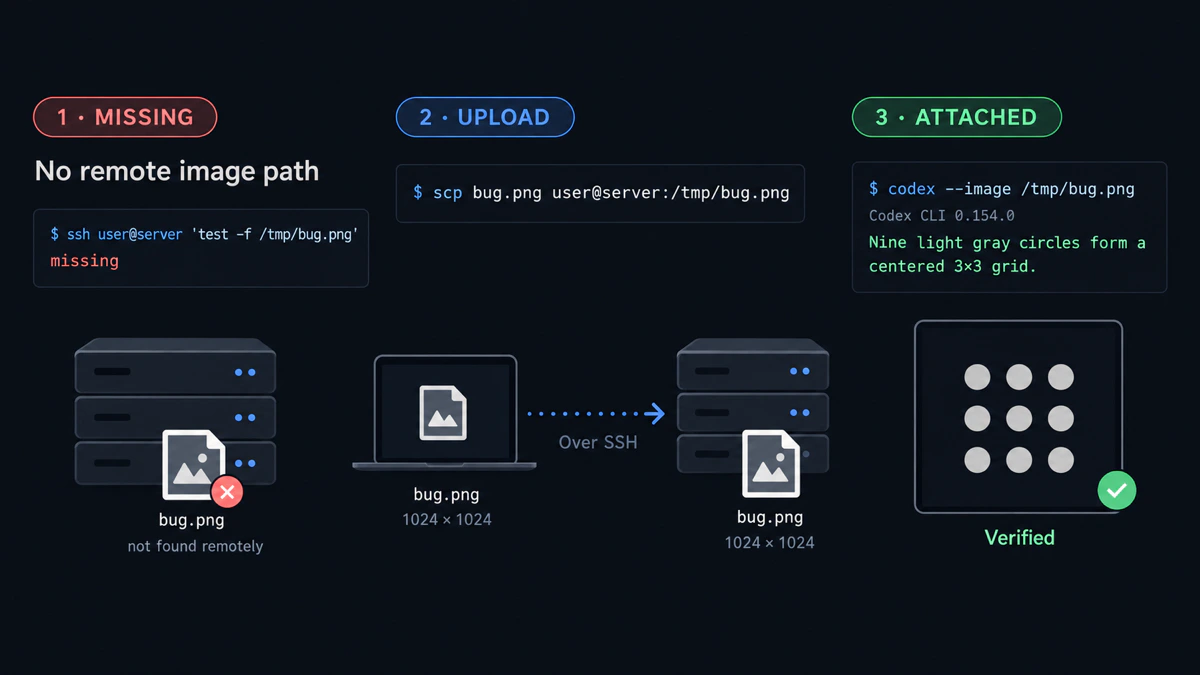
Codex CLI 0.154.0 recognizes -i, --image <FILE>...; the reliable SSH workflow gives that flag a remote file path.
Why local clipboard images disappear over SSH
Codex CLI runs on the machine where you launch codex. When that process is on a remote server, a screenshot in the laptop clipboard or at /Users/you/Desktop/bug.png is not a file on the server.
Codex supports image paths explicitly: the official Codex CLI reference documents --image, -i for one or more images. Clipboard paste is a separate input path and remains inconsistent across terminals and platforms, as shown in the open Codex clipboard-image issue.
Upload the image with scp
Run the free manual transfer from the laptop. OpenSSH documents scp as a secure copy between hosts.
macOS or Linux
scp ~/Desktop/bug.png user@server:/tmp/bug.pngExpected result: scp exits without an error and /tmp/bug.png exists on the server.
Windows through WSL
scp /mnt/c/Users/you/Pictures/bug.png user@server:/tmp/bug.pngMicrosoft documents that the Windows C: drive is mounted in WSL at /mnt/c.
Expected result: the screenshot is copied from the Windows filesystem to /tmp/bug.png on the remote server.
Verify the remote image
ssh user@server 'file /tmp/bug.png && ls -lh /tmp/bug.png'Expected result: file reports image data and ls prints a non-zero size.
Attach the remote file with codex --image
Start Codex on the remote host with the image flag before the prompt:
codex --image /tmp/bug.png "Inspect this screenshot and explain the layout failure."The short form is equivalent:
codex -i /tmp/bug.png "Inspect this screenshot."Expected result: Codex starts a session whose initial message includes the remote image.
If the image path contains spaces, quote the path:
codex --image "/tmp/checkout failure.png" "Explain the visible error."Expected result: the shell passes the whole path as one image argument.
Send multiple images as one batch
The official CLI reference permits repeating --image or supplying a comma-separated path list:
codex \
  --image /tmp/before.png \
  --image /tmp/after.png \
  "Compare the before and after states."
Expected result: both images are attached to the initial prompt.
The manual route requires one upload path per image. For several images or mixed files, install vmup and complete the first SSH upload, then create one temporary remote folder:
vmup before.png after.png console.txtExpected result: vmup prints one Agent folder: path containing the three uploaded files.
On the server, replace the example BATCH_DIR value with the exact Agent folder: path vmup printed. vmup normalizes the two images to image-01.png and image-02.png, and console.txt to file-01.txt:
BATCH_DIR=~/vmup/agents-20260916-120000-a1b2c3d4 # Paste the exact Agent folder path.
codex \
  --image "$BATCH_DIR/image-01.png" \
  --image "$BATCH_DIR/image-02.png" \
  "Compare these screenshots and read $BATCH_DIR/file-01.txt."
Expected result: Codex receives both images and can read the adjacent text file from the remote batch directory.
macOS, Linux and WSL examples
| Local environment | Screenshot path passed to scp | Where codex --image runs |
|---|---|---|
| macOS | ~/Desktop/bug.png | Remote SSH host |
| Linux | ~/Pictures/bug.png | Remote SSH host |
| Windows through WSL | /mnt/c/Users/you/Pictures/bug.png | Remote SSH host |
The codex --image argument must always name the remote copy, such as /tmp/bug.png, not the path from the first column.
Common failures
No such file or directory: confirm the image withssh user@server 'ls -l /tmp/bug.png'before starting Codex.- A
C:\or/Users/…path was passed to remote Codex: upload the file and use its remote Linux path. - Clipboard paste does nothing: use
--image; the open issue records terminal and platform inconsistencies. - The image path contains a comma: repeat
--imageinstead of using a comma-separated list. - The remote user cannot read the file: copy into a directory owned by that user and verify permissions with
ls -l.
scp versus vmup
Use scp for one or two named images that should keep their names. Use vmup when several files belong to one request, you want one remote folder prompt, or the remote evidence should expire automatically.
Both approaches still use SSH. Neither requires a browser upload or an agent plugin.
For the general multi-file workflow, read send files to a remote coding agent. For the same clipboard boundary in another terminal agent, read paste an image into Claude Code over SSH.
Last tested with
- Codex CLI 0.154.0 (actual ephemeral, read-only image attachment completed), September 16, 2026
- Manual transfer: macOS 26.6, OpenSSH 10.3p1, localhost SSH target
- Linux transfer: Ubuntu 26.04, OpenSSH 10.2p1, Lima VM to localhost SSH target
- Batch workflow: vmup 0.4.0
- WSL path form:
/mnt/c/...transfer executed under Ubuntu 26.04 and checked against Microsoft’s WSL documentation; native WSL was not available
Quick answers
How do I attach an image to Codex CLI over SSH?
Upload the image to the remote host, then run codex --image /remote/path/image.png on that host.
Does codex --image accept more than one image?
Yes. Repeat --image or use the comma-separated form documented by the Codex CLI reference.
Can remote Codex read a local macOS or Windows path? No. The remote process needs a path on the remote filesystem.
Why not paste the screenshot directly?
Clipboard-image paste varies by terminal and platform. An explicit remote path through --image is observable and documented.
Should I use scp or vmup?
Use scp for a small manual transfer. Use vmup when you want one temporary folder for several files and one prompt to paste.
Disclosure: vmup is maintained by the author of this article. The scp plus codex --image workflow above is free and does not require vmup.